

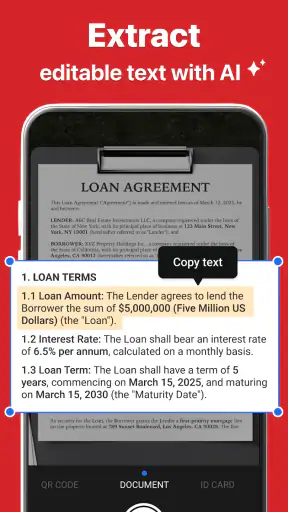
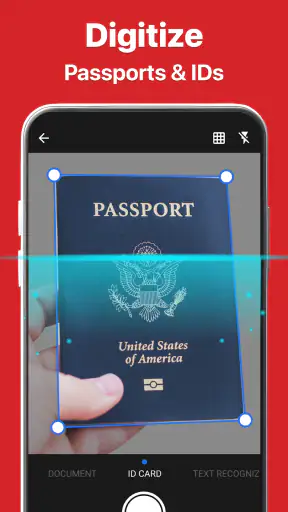
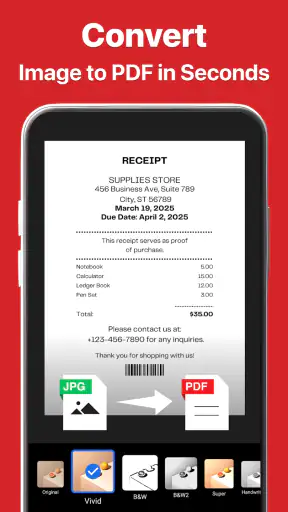
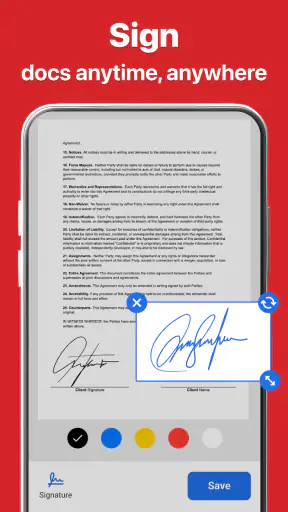
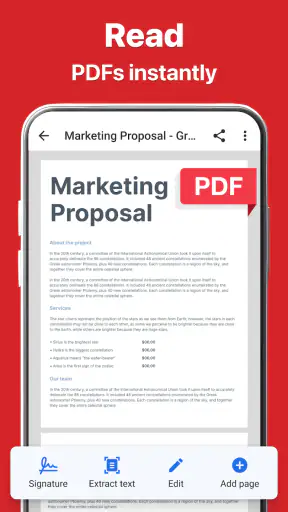
Turning a paper document into a useful digital file sounds simple until a desk is covered with receipts, signed forms, handwritten notes, and pages that need to be sent quickly. PDF Document Scanner - PixScan is built around that everyday problem. It is a free productivity app from Eco Mobile for Work that uses an AI-assisted scanning workflow to turn photographed documents into PDFs. After spending time with it, I see its main value less as a replacement for a full office scanner and more as a practical way to rescue paperwork when your phone is the device already in your hand.
The important distinction is speed. A normal camera app can photograph a page, but the result often remains a loose image with awkward edges, uneven framing, or no clear document structure. PixScan is aimed at the step after taking the picture: making the capture feel like a document rather than a casual photo. That is especially useful when I need to share a form, archive a bill, or collect several pages into one file without opening a desktop program.
Why the document-to-PDF workflow matters
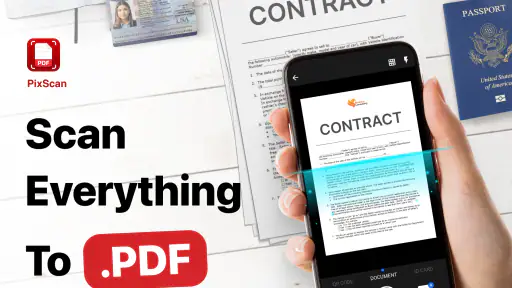
The app’s central capability is its direct path from a physical page to a PDF. In practice, that reduces the small decisions that usually slow this task down. I do not have to photograph a page with the regular camera, search for the image later, crop it in a separate editor, convert it, and then find a way to send the finished file. The scanning approach keeps those actions together.
That sounds like a modest convenience, but it changes how useful a phone becomes for paperwork. A phone camera is always available, while a traditional scanner is often in another room, shared with other people, or unavailable altogether. PixScan makes sense when the goal is not studio-quality reproduction but a readable, presentable document that can move immediately from a physical surface to a digital inbox.
I also like the way this capability encourages a more disciplined archive. Instead of leaving a gallery full of vaguely named page photos, I can treat the result as a document intended for storage or sending. That is a better fit for invoices, school paperwork, travel documents, application forms, and notes from a meeting. The app’s role is straightforward: capture the page, prepare it for PDF use, and keep the process focused on the document.
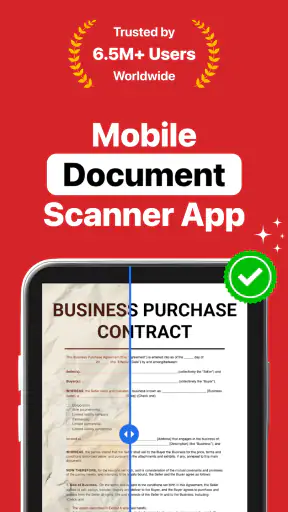
Its store summary describes it as an AI document scanner for office work, and that office focus is important. This is not primarily a photo-editing tool or a general file manager. People who want a quick document workflow will understand its purpose immediately. Someone looking for advanced image manipulation, extensive cloud organization, or a complete desktop publishing environment may find the scope narrower than expected.
What I noticed while scanning ordinary pages
The best results come from treating the phone like a scanner before pressing the capture button. I place the page on a surface that contrasts with its edges, avoid casting a shadow across the text, and hold the phone as parallel to the paper as I can. PixScan can help turn a casual capture into a cleaner document, but no scanning app can recover text hidden by glare or a finger.
This is one of the app’s more useful lessons: the quality of the final PDF begins with the physical setup. A bright room is not always enough if the light reflects directly from glossy paper. I get better results by moving slightly to one side rather than standing directly over the page. That small adjustment matters more than repeatedly trying to correct a badly lit image afterward.
For multi-page paperwork, I would capture each page in order and pause briefly to check that the whole sheet is visible before moving on. This avoids a common mistake with mobile scanning: finishing a stack and only then discovering that one page was tilted too far, partly covered, or photographed with a distracting shadow. PixScan is most helpful when I use it as a quick document routine rather than as a magic cleanup button.
There is also a practical trade-off between speed and inspection. If I am sending an informal note to a colleague, I can move quickly. If I am submitting a signed form or preserving a receipt for later, I take the extra moment to inspect the edges and small print. A PDF that opens successfully is not automatically a useful PDF; legibility still depends on the original capture.
A realistic everyday workflow
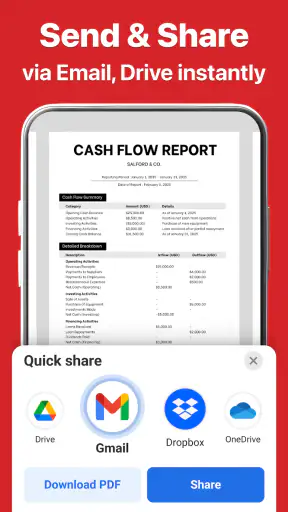
Imagine receiving a paper form at a school office or a repair shop and needing to send it home before leaving. I would put the form flat, scan the front, check that the signature and small fields are visible, then continue with any additional pages. The resulting PDF is more convenient to send than a sequence of camera images, and the recipient can view it as one coherent document instead of sorting through attachments.
That scenario shows where PixScan earns its place. The app is not saving me from a complicated technical task; it is removing several annoying transitions. I do not need to remember which image belongs to page one, and I do not need to explain why a sideways photo is part of an important document. The value is concentrated in the handoff from paper to a shareable file.
I find the same workflow useful for receipts after a purchase, especially when I know I will need them for reimbursement. Rather than leaving them in a pocket until the ink fades or the paper gets lost, I can create a digital copy while the information is still clear. For handwritten notes, the benefit is similar: a PDF keeps a group of pages together and is easier to send to someone who was not in the room.
There is a less obvious use for renters, freelancers, and small-business owners. When a document arrives unexpectedly, a phone scanner can create a temporary working copy before the original is filed away. That does not replace keeping the paper when the original matters, but it gives me a searchable place in my own workflow for the information I need to act on today.
Where it is stronger than the usual camera workaround
The ordinary camera app is familiar, but it treats a document as an image. That leaves me to manage cropping, orientation, page order, and conversion separately. PixScan is more focused because the intended output is a PDF rather than a photograph sitting in the camera roll. For occasional paperwork, that narrower purpose is a real advantage.
Compared with a physical scanner, the phone-based approach wins on availability. I can scan away from a desk, at a meeting, in a shop, or while handling paperwork for a family member. The compromise is that a phone depends more heavily on steady positioning and decent lighting. A flatbed scanner remains the better choice for delicate originals, large batches, high-fidelity color work, or situations where consistent reproduction matters more than convenience.
Compared with a broad office suite, PixScan may feel easier to approach because the task is clearly defined. I do not have to navigate a large collection of unrelated tools just to make a PDF. On the other hand, users who already have a document-management system may prefer staying inside that system, particularly if it handles storage, collaboration, signatures, or text extraction in one place. PixScan is most attractive when the immediate problem is scanning itself.
Small habits that improve the result
I recommend scanning pages in their final reading order, even if I plan to rearrange them later. It is quicker to prevent confusion than to reconstruct the order from similar-looking pages. I also keep the phone lens clean; a faint fingerprint can turn fine print into a soft blur, and software cannot reliably correct that.
For a document with a dark border or colored paper, I check the corners rather than judging only the center. The edges are where a crop error becomes obvious. If a page contains a signature, stamp, or handwritten amount, I inspect that area at full size before considering the scan finished. These checks are especially important because a clean-looking overall page can still hide one unreadable detail.
Another useful habit is separating “send now” scans from “archive carefully” scans. The first type may only need to be readable and complete. The second deserves more attention to page order, lighting, and whether the original should be retained. This distinction keeps the app fast for routine tasks without encouraging me to treat every scan as equally unimportant.
The limits I would consider before relying on it
The app’s convenience does not remove the physical limitations of phone scanning. A wrinkled page, reflective card, cramped desk, or dim room can make the process frustrating. If I have a large stack of documents, the repeated capture-and-check rhythm may become tiring compared with feeding pages through dedicated hardware. PixScan is a strong answer to occasional or moderate paperwork, not necessarily to a busy records department.
I would also be cautious with documents where exact color or fine detail is critical. A phone-based PDF can be perfectly readable while still changing the visual character of the original. Art prints, technical drawings, faint carbon copies, and pages with tiny annotations deserve a more controlled scanning setup. The app’s strengths are convenience and document usability, not a promise that every source will reproduce like a professional scan.
There is a cost consideration as well. The app is free to install, while optional in-app purchases range from $1.99 to $49.99 per item. That makes it easy to try the basic workflow before deciding whether any paid option fits your needs. I would think about that choice in terms of frequency: someone scanning a few forms a month may have no reason to spend more, while a person using the app as part of regular work may value additional paid capabilities if they match the way they organize documents.
The age rating is Everyone, which suits a general-purpose paperwork tool used by families, students, and workplaces. Still, an age rating does not answer every practical question about handling sensitive material. I would personally avoid scanning confidential documents casually on a shared phone, and I would review the app’s current behavior and settings before making it part of a business record process. That is sensible caution for any document scanner, not a criticism unique to PixScan.
Who will get the most from it
Students can benefit when a teacher hands out a page that needs to be shared with a group or kept with digital notes. Parents may appreciate it for school forms, permission slips, and medical paperwork that needs to reach another caregiver. Freelancers and independent workers can use it to turn signed agreements, receipts, and paper expenses into files that are easier to pass along than loose photographs.
It is also a good fit for people who do not own a printer or scanner but occasionally need a PDF for an online submission. In that situation, the app avoids buying hardware for a problem that appears only now and then. The phone is already part of the workflow, so the extra step is easier to justify than setting up a separate device.
I would be less enthusiastic for someone who scans hundreds of pages every week, needs automatic high-volume feeding, or depends on exact archival reproduction. That person should look at a dedicated scanner or a more comprehensive document platform. I would also skip PixScan if my main need is editing the content of a PDF after capture; the app’s appeal is getting the paper into PDF form, not replacing a full document editor.
The app has reached over five million installs and holds a 4.7 average from roughly thirty-nine thousand ratings, which suggests that its focused approach has found a substantial audience. Those figures do not change my practical judgment, but they do fit what I experienced: this is an approachable utility aimed at a common phone task rather than an obscure specialist tool. Its developer, Eco Mobile for Work, has kept the concept easy to understand.
Device support and day-to-day fit
PixScan supports Android devices running version 8.0 or later. That gives it a fairly broad place in the Android ecosystem, although the real experience will still depend on the phone’s camera, screen, battery condition, and available storage. A newer phone with a sharper camera can make the capture stage easier, but careful lighting and positioning remain important even on good hardware.
The current version is 4.2.6, and the app was released on August 7, 2020. I mention that history only as useful context for someone judging whether the tool is an established utility or a brand-new experiment. In daily use, what matters more is whether the current build behaves smoothly on a particular device and whether the workflow matches the documents that person handles.
One practical question is whether it can replace every other way of making PDFs. I would not frame it that way. It is better viewed as the fast option for paper that is in front of me right now. If the source already exists as a digital file, a file-management or office app will usually be more direct. If the source is a physical page and I need a usable PDF without finding a scanner, PixScan becomes much more compelling.
Another question is whether the app is suitable for occasional use. Yes, that is where I think it feels most natural. I can open it when a document appears, complete the task, and move on. The workflow does not require me to build a complicated system around it. Regular users may develop naming and storage habits, but casual users can still benefit from the basic paper-to-PDF path.
My final view after using the workflow
PDF Document Scanner - PixScan succeeds because it focuses on a problem people often solve badly with a normal camera: producing a coherent PDF from physical pages. I like it most for urgent forms, receipts, notes, and small batches where convenience matters more than laboratory-level reproduction. The best results come from good lighting, a clean lens, and a quick inspection of every important detail.
It is not the right answer for heavy-volume scanning, exact archival work, or anyone seeking a complete PDF editing and document-management suite. Those users will be better served by dedicated hardware or a broader office tool. For everyone else, especially students, families, freelancers, and people who only occasionally face paper-heavy tasks, the free entry point makes it easy to test without committing to equipment.
My recommendation is simple: keep it in mind as a practical emergency scanner rather than expecting it to transform every document workflow. When a paper page needs to become a presentable PDF before I can reach a computer, that distinction is exactly why PixScan is useful.


